

A recurring event is an event that repeats automatically at the same time on the same day (for example, a Study Pod that happens every Monday at 2pm your time!)
It is perfect for regular clubs, study groups, or weekly practice sessions - you set it up once and it creates all the future dates for you.
How to create a recurring event
On step 2 of creating an event, at the Time Details step, you will see two options:
No, just once - for a single event that does not repeat
Recurring Schedule - for an event that repeats at the same time on the same day(s)
Select Recurring Schedule.
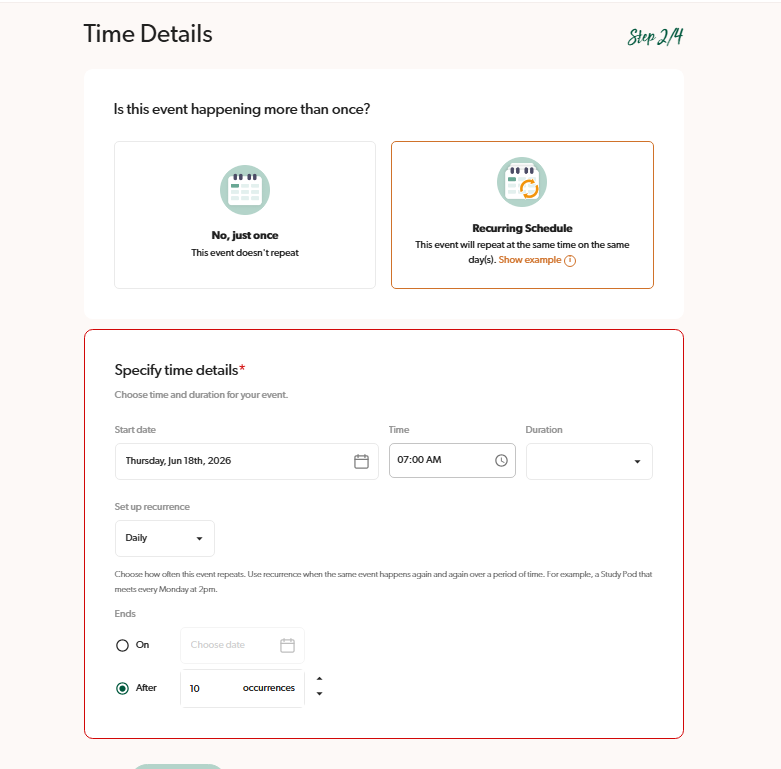
2. Set your start date and time
Choose the date and time for your first event. This is when the series begins.
You will also need to select a Duration from the dropdown menu.
3. Choose how often it repeats
Under Set up recurrence, choose one of the following options:
Daily - the event repeats every day
Weekly - the event repeats once a week on the day(s) you choose
Fortnightly - the event repeats every two weeks
Monthly - the event repeats once a month
If you choose Weekly or Fortnightly, select which day(s) of the week the event should repeat on. You can select more than one day.
4. Set an end date
You have two options for when the series ends:
On - choose a specific end date
After - choose how many times the event will run (for example, 4 occurrences = 4 events total)
Please note: the platform has a maximum limit of 31 days for recurring events. If you see a warning message, reduce the number of occurrences or choose an earlier end date.
Continue to the next step
Once everything looks correct, scroll down and click Next to continue setting up your event
What your recurring event looks like once it's published
Once your event is live, members will see a note at the bottom of the event page that says:
This event repeats every [day] at [time]
View full schedule
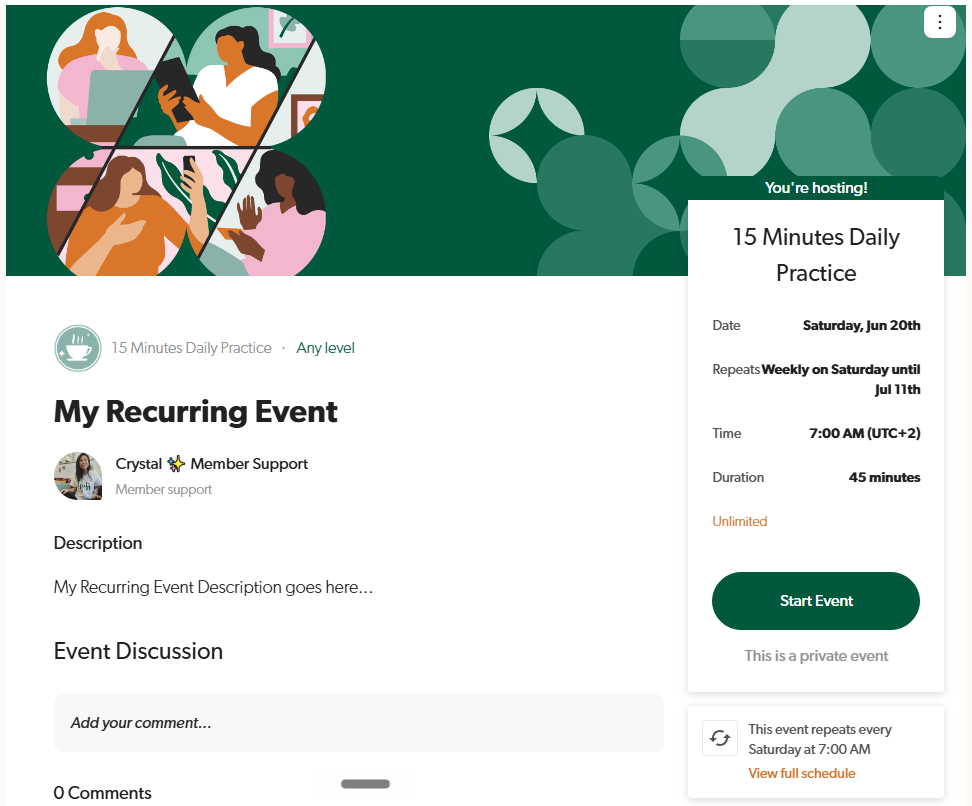
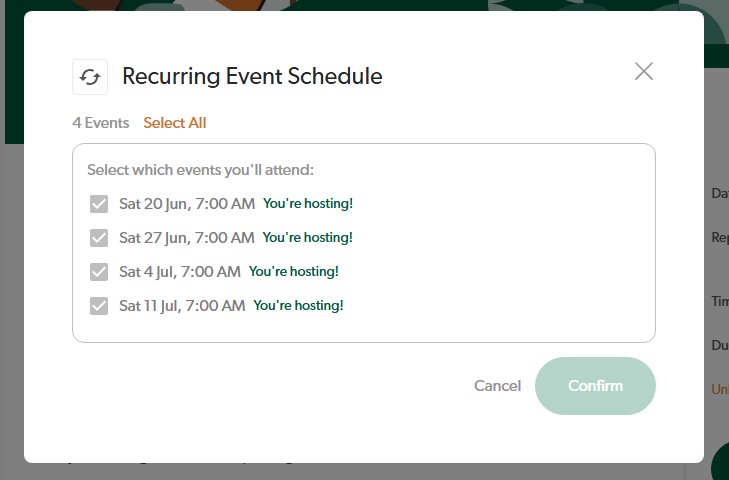
When a member clicks View full schedule, a window opens showing all the individual dates in the series. Members can select which dates they plan to attend and confirm their RSVP for one, some, or all of them.
How to edit a recurring event
If you need to make changes to your recurring event after it has been published, please note that any edits will apply to ALL events in the series - you cannot edit just one date.
When you edit the time details of a recurring event, you will see a confirmation message asking: "Are you sure? You are about to edit the time of a recurring event. Any changes you make will affect all recurring events. Do you want to continue?"
Click Yes, I want to update them all to save your changes, or No to go back without making any changes.